 |
 |
 |
 |
 |
 |
 |
| Timeshare Classified Ad
Search Instructions! This page is a step by step instructional guide on how to use the Search tool to find Timeshare Classified Ads in the Marketplace! |
TUG Banner Ads .. click for details on this banner program |
|
How to Search for Ads in the TUG
Timeshare Marketplace
This page will
provide information and detail on the TUG Classified Ad Search Tool!.
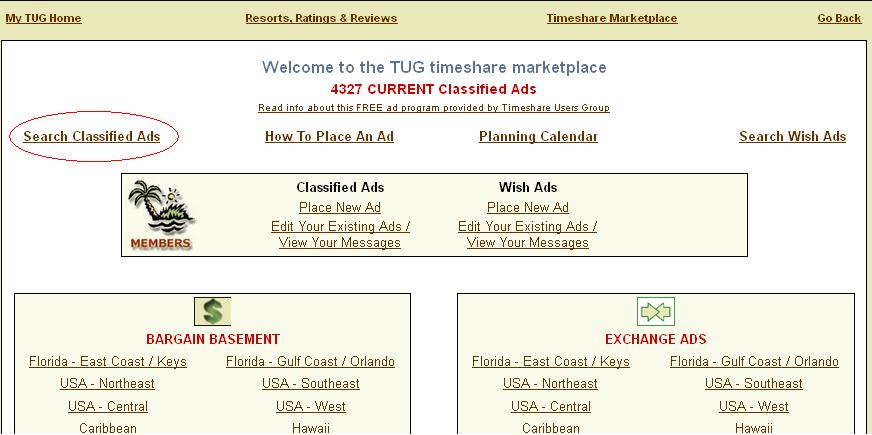
Step1. Point your web browser to the Timeshare Marketplace Homepage here: http://tug2.com/timesharemarketplace This is the TUG
Timeshare Marketplace Homepage, all For Sale, For Rent, For Exchange,
and Wish ads are placed here! Since there are around 5000 ads
posted at any given time, it can be difficult to narrow down what you
want! While we do provide a wide variety of categories to
narrow down your search on the Marketplace Homepage, we also provide a
tool that allows you to search very specifically for what you are
looking for and find it quickly and easily!
Step 2. Click on "Search Classified Ads" As
you see highlighted in the Red Circle below, the Search Classified Ads
link will direct you to our Timeshare Classified Search Tool
 Step 3.
Input
Search Criteria - Part 1
The
First options to select represent very simply, the name or location of
the Resort you are searching for. It is important to note
that you MUST type the resort name in exactly, as any spelling errors
will return no results. It is suggested to simply type in a
single unique word of the resort name for best results!
Resort Area lets you search for all resorts in a specific geographic category: Example: US West Group lets you narrow that category down into the narrowest subset of the larger area: IE you can select individual US states to search. *Tip: All of these fields are optional, you can input as much or as little as you want when searching! 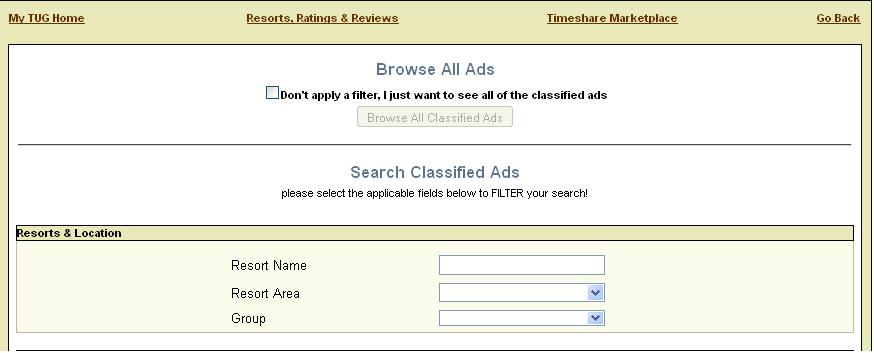 Step 4:
Input Search Criteria - Part 2
In
this section you select the TYPE of classified ad you are searching
for: For Sale, For Rent, or For Exchange
Note the permanent radio button allows you to search only the For Exchange ads that individuals want to trade permanently (previously direct swap  Step 5: Input Search Criteria - Part 3 This
section allows you to select more detailed options about the interval
you are searching for! Fixed weeks, Floating Weeks, a
specific name of a point program ex: "Worldmark" or "RCI" if that is
what you seek. Again, you can select as many or as few
options as you like, every single field is optional!
Tip: If you are confused about what these terms mean, check out this advice article for a better description on the different Timeshare types: Timesharing 101 Guide  Step 6: Input Search Criteria - Part 4 This
section provides for the selection of Check in Dates and specific Week
numbers.
Note the planning calendar link here will pop up a multi year Timeshare Calendar to allow you to easily match up the Week number to the Calendar Date for Check In!  Step 7: Input Search Criteria - Part 5 The
final two sections allow you to input any specific details about the
price range you are looking for, and the exact type of room/unit you
are searching for!
Once you have completed the selections, simply click the link at the bottom to execute the search! If no results are found, be sure to hit the back button and remove some selections that may be preventing you from finding the Intervals you are looking for! With thousands of active ads, you should be able to find what you are looking for using this tool! 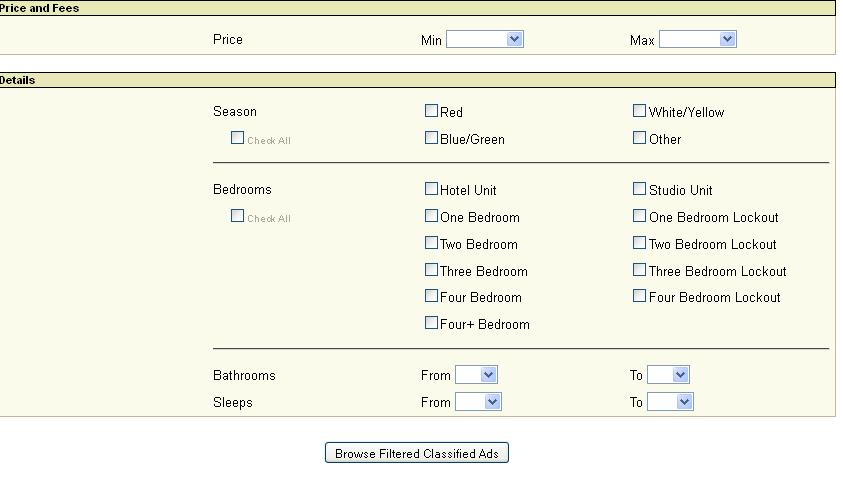 Step 8: View your
Results
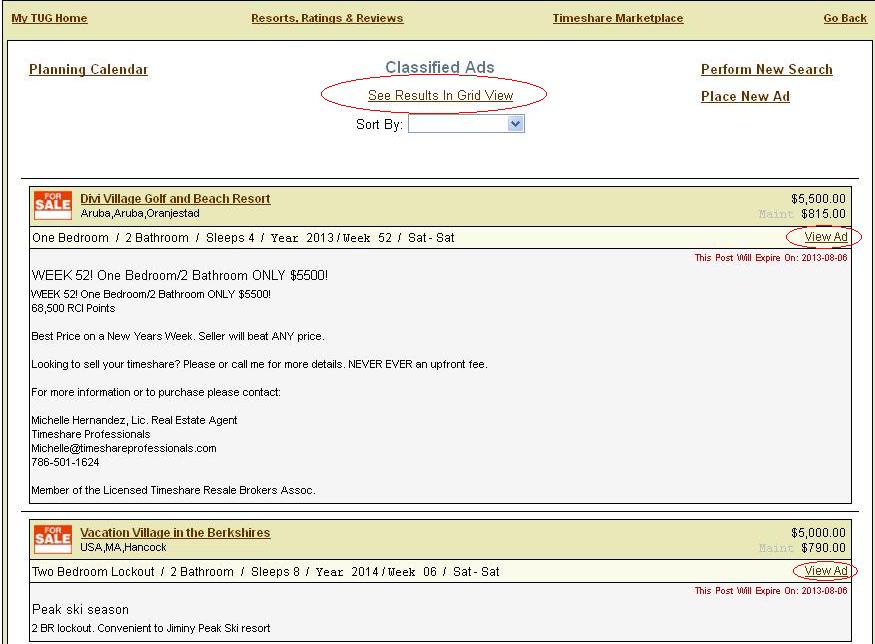
By default your
results will be displayed like this in "Detail View" with only 50 ads
displayed per page. This view shows more detail about each ad
without having to drill into the ads themselves. The link
near the top titled "See Results in Grid View" will let you display a
more condensed version of the ads with 100 ads per page. Both
options have the link titled "View ad" on the right side that you can
click to view the complete ad and contact the owner directly about
their posting.
 Step 9:
View
Ad Details
As you can see
below, clicking "View Ad" brings up the full ad description, as well as
the all important "Contact This Member" link which allows you to send a
message directly to the poster of the Classified Ad! Note
this feature is free and open to the public, you do not need to be a
member to contact individuals about their Classified Ads!
Tip: At the top of the ad description you will see the term "Seller Description" or "Broker Description". This identifies the poster of the ad as either an individual seller (ex owner of that property) or a Timeshare Broker who is listing the property for someone else. 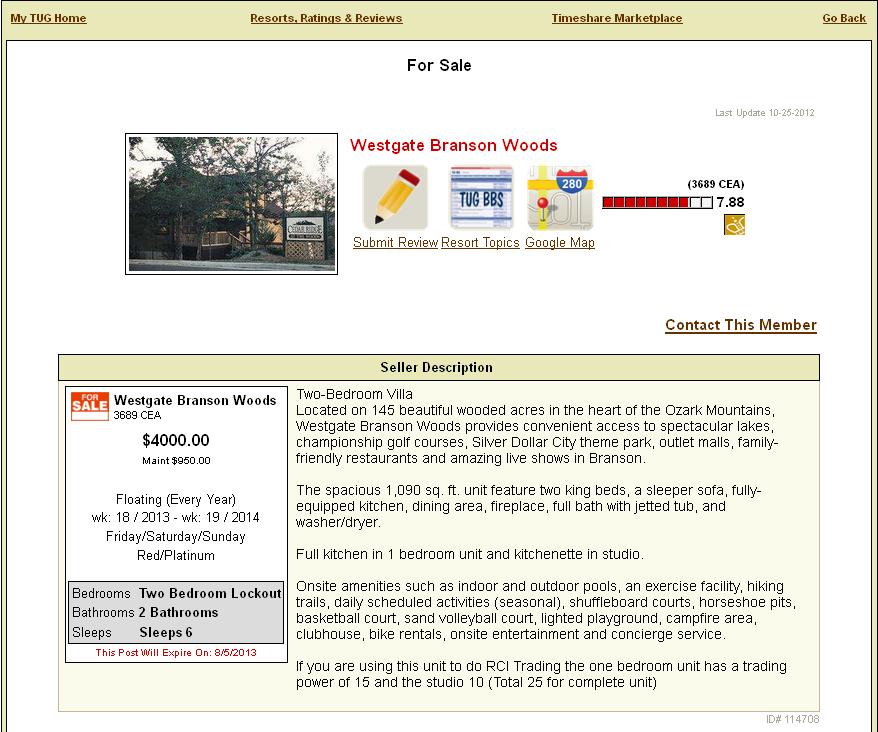 Step 10: Check back Regularly! Ads in the
marketplace by default will expire in 90 days if they are not renewed
by the Members who posted them, so check back regularly as we get
hundreds of new ads every week! Also be sure to check out the
Bargain Deals and Last Minute Rentals section of the
TUGBBS
forums as both sections are fabulous places to find amazing
deals on Timeshare Resales and Rentals along with the Marketplace!
We hope this article helps you with searching ads in the TUG Timeshare Marketplace! Go Search Today! Feel free to stop by our Timeshare Community Forums if you want to ask specific questions, with more than 60,000 other Timeshare owners and experts, no question goes unanswered!
|
and post Free Timeshare Classified ads (for individuals) in the |
|
|

page updated May 2013 by B Rogers - Send email regarding this page to tug@tug2.net